Helpdesk Chk guide
~ getchk / docs / helpdesk-chk
Helpdesk Chk adds a help desk to Chatbot Chk: a support portal where your customers open tickets and talk with an AI assistant first, a knowledge base of help articles, and ticket tools for your team in Support. It uses what Chatbot Chk already has: the AI, what the bot knows about your site, your team, the alerts and the email codes.
Requirements
- Chatbot Chk 1.36.0 or newer, installed and active. Without it, Helpdesk Chk loads nothing and shows a notice; your tickets stay in the database.
- WordPress 6.4 or newer and PHP 7.4 or newer, as Chatbot Chk.
- The Pro features (wait alerts by priority, ticket reports, AI that classifies and summarizes, learning from tickets and the help desk's own allowed and blocked emails) follow your Chatbot Chk license.
Install Helpdesk Chk like any plugin, activate it, and open Chatbot Chk > Help desk.
Help desk
Helpdesk Chk turns Chatbot Chk into a help desk: your customers open tickets in a support portal, talk with the assistant first, read your help articles, and your team works the tickets in Support with statuses, priorities and categories. Set it up under Chatbot Chk > Help desk; only administrators see this screen.
How you use it
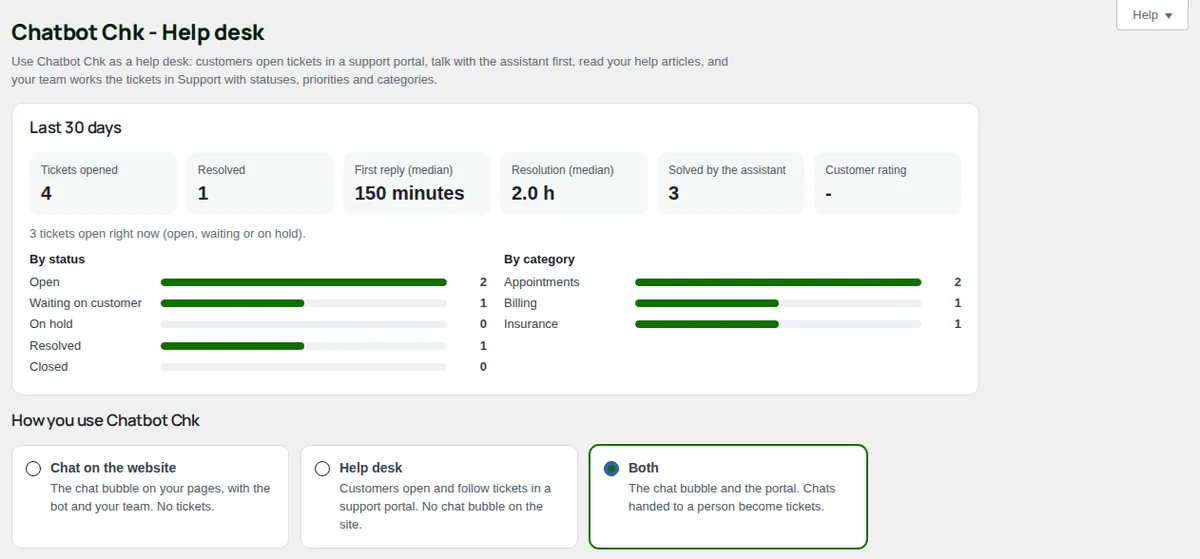
Choose one of three ways:
"Chat on the website"
the chat bubble on your pages, with the bot and your team. No tickets. This is how every site works until you change it.
"Help desk"
customers open and follow tickets in a support portal. There is no chat bubble on the site, and Live and proactive messages are off.
"Both"
the chat bubble and the portal. Chats handed to a person become tickets, and the bot knows the open tickets of a customer who is signed in.
Tickets
A ticket has its own number (#1, #2...), a subject, a status, a priority and, if you use them, a category.
- Statuses: "Open", "Waiting on customer", "On hold", "Resolved" and "Closed". A resolved ticket opens again when the customer answers. A closed one does not: the customer's answer opens a new ticket that says which one it follows.
- Priorities: "Low", "Normal", "High" and "Urgent". Your team sets the priority (or the AI, on Pro); new tickets start at Normal.
- "Categories": one per line. Your customers pick one when they open a ticket. Leave it empty and the portal does not ask.
- "Urgency": with "Customers say how urgent it is when they open a ticket" on, the portal asks "How urgent is it?" and the answer sets the priority: "It can wait" is Low, "Normal" is Normal, "I cannot work" is High and "Urgent: something important is down" is Urgent. Your team can change it.
- "Waiting on customer": with "When an agent replies, the ticket moves to Waiting on customer" on, a reply moves the ticket there, and the customer's answer moves it back to Open.
The support portal
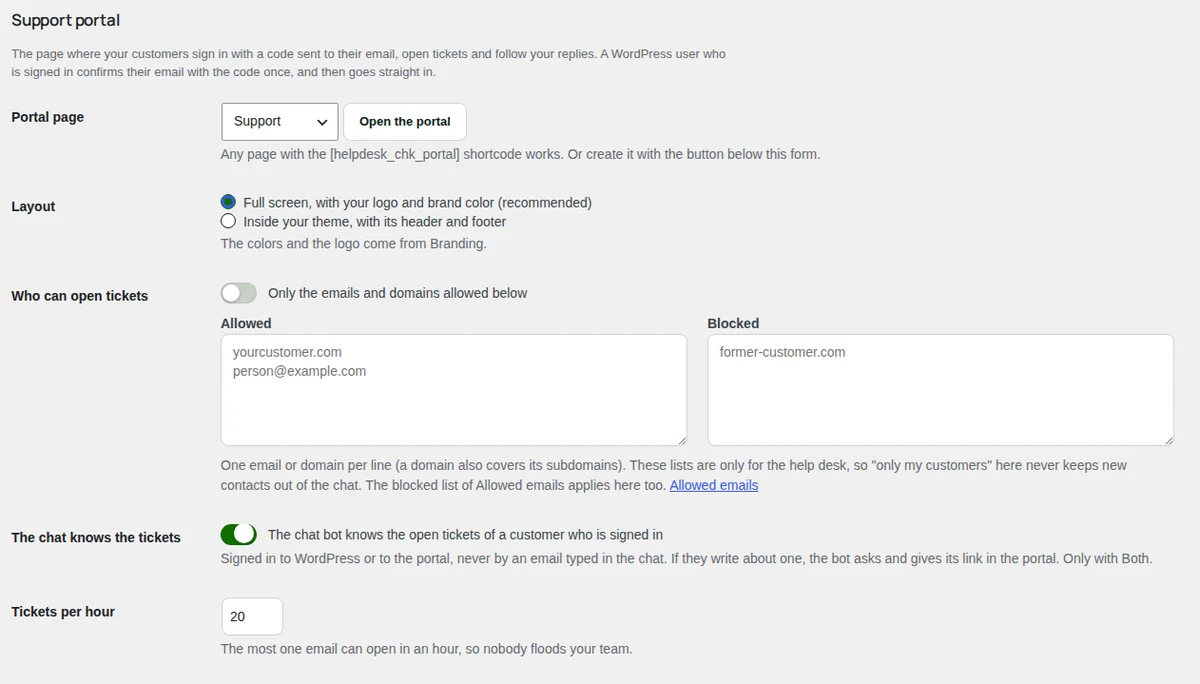
The portal is the page where your customers sign in, open tickets and follow your replies. Press "Create the Support page" (one page per language with Polylang), or put the [helpdesk_chk_portal] shortcode on any page and choose it in "Portal page". The portal page is never cached and stays out of search engines.
- "Layout": the colors and the logo come from Branding.
- "Full screen, with your logo and brand color (recommended)".
- "Inside your theme, with its header and footer".
- "Who can open tickets" (Pro): the help desk has its own "Allowed" and "Blocked" lists of emails and domains, one per line. With "Only the emails and domains allowed below", only those on the list get in; otherwise anyone who confirms their email with the code does. They are separate from Allowed emails (the chat's), so limiting it to your customers here never keeps new contacts out of the chat. The blocked list of Allowed emails applies to the portal too.
- "Tickets per hour": the most one email can open in an hour.
- "The chat knows the tickets": with "Both", the bot knows the open tickets of a customer signed in to WordPress or to the portal (never by an email typed in the chat), asks whether they write about one and gives its link.
The support assistant
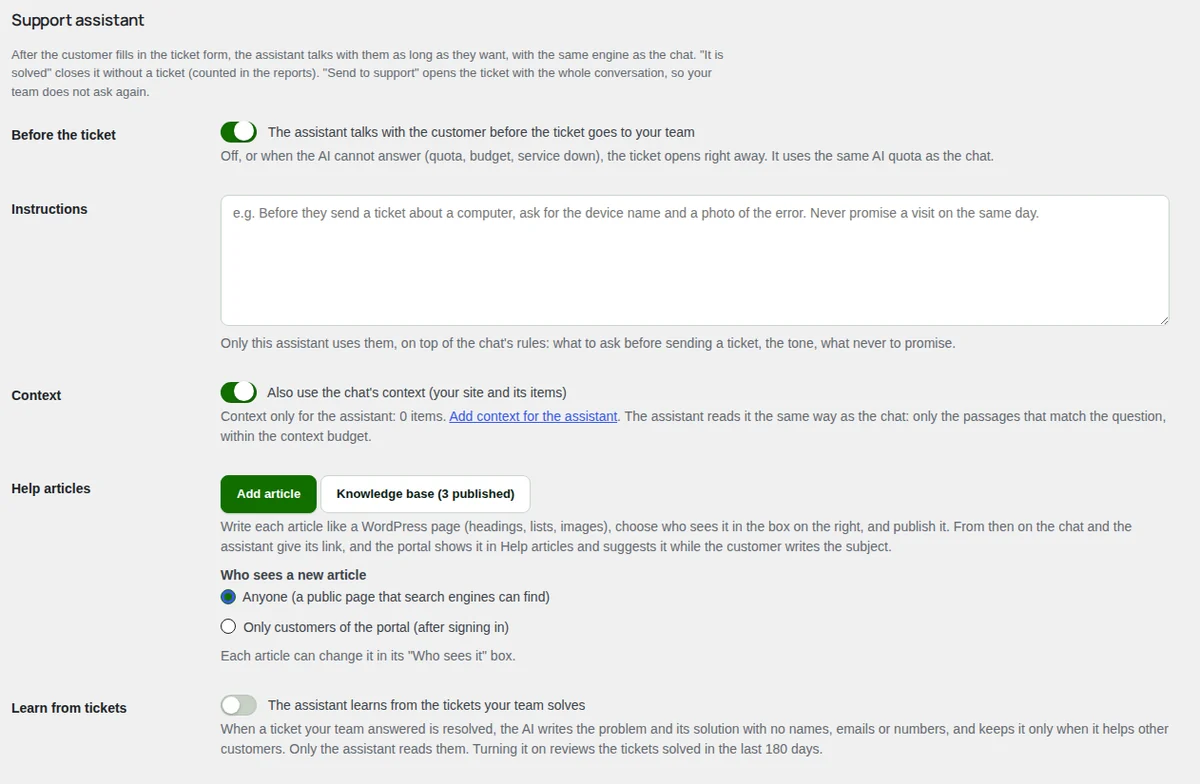
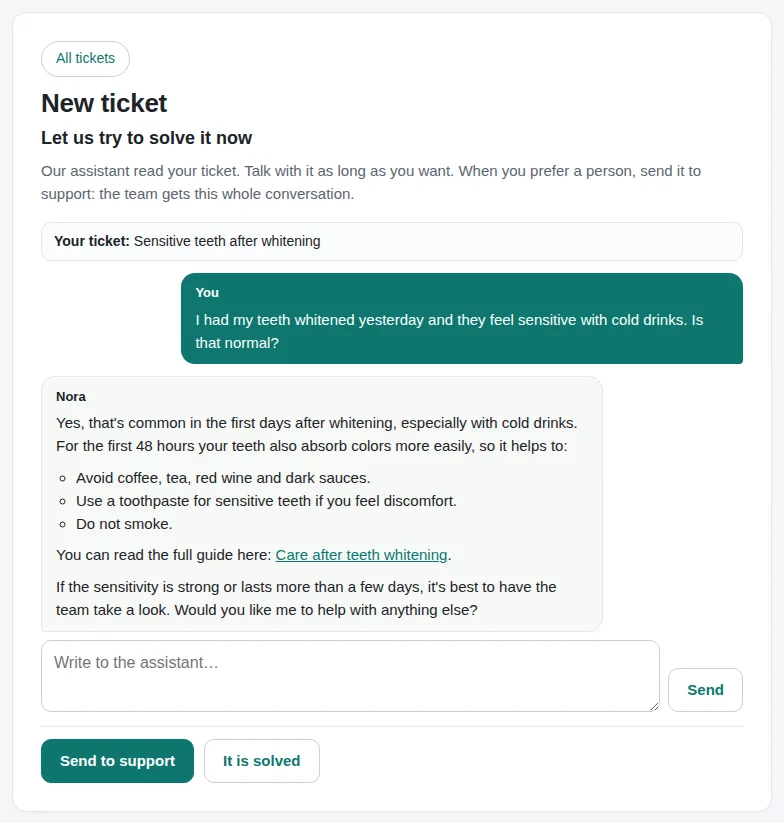
After the customer fills in the ticket form, the assistant talks with them as long as they want, with the same engine as the chat. The customer decides when it ends: "It is solved" closes it without a ticket (it counts in the reports), and "Send to support" opens the ticket with the whole conversation, so your team does not ask again. Before it is sent, a window confirms that the assistant stops answering there ("Keep talking with the assistant" or "Send to support").
The files the customer attaches in the form go with the conversation and then with the ticket. The assistant reads documents (PDF and text) with the same reader as the context documents, on your site. It cannot see images: it knows they are there and tells the customer the team will see them. When the assistant sees that a person is needed (a refund, a change to the account), it says so and highlights "Send to support".
- "Before the ticket": "The assistant talks with the customer before the ticket goes to your team". Off, or when the AI cannot answer (quota, budget, service down), the ticket opens right away. It uses the same AI quota as the chat.
- "Instructions": only this assistant uses them, on top of the chat's rules. For example, what to ask before sending a ticket, the tone, or what never to promise.
- "Context": with "Also use the chat's context (your site and its items)" on, the assistant knows what the chat knows. It can also have context of its own: press "Add context for the assistant" and, in Context, choose "Only the support assistant (portal)" in "Who uses it". Use it for internal procedures or answers the chat on your website should not know. The assistant reads it the same way as the chat: only the passages that match the question, within the context budget.
- "Help articles": how many published articles you have, with links to the knowledge base.
- "Learn from tickets" (Pro): when a ticket your team answered is resolved, the AI writes the problem and its solution with no names, emails or numbers, and keeps it only when it helps other customers. Only the assistant reads them. Turning it on reviews the tickets solved in the last 180 days. What it learned shows below, in "Learned from tickets": delete what is wrong, or press "Turn into an article" to create a draft help article.
Knowledge base
In Chatbot Chk > Knowledge base you write help articles with the WordPress block editor (headings, lists, images, tables), with categories and, with Polylang, one per language. Editors and administrators write them (what they say goes into what the bots know).
To create one:
- Press "Add article" (in the knowledge base, or in Help desk > Support assistant).
- Write it like a WordPress page.
- In the "Who sees it" box on the right, choose: - "Anyone": a public page (yoursite.com/kb/...) that search engines can find. The chat on your website can give it too. - "Only customers of the portal": customers read it after signing in to the portal, and the support assistant can give it. It stays out of search engines and sitemaps, and the chat on your website does not know it. Its public address leads to the portal.
- Publish it.
"Who sees a new article", in Help desk, sets what new articles start with.
- The chat and the assistant know every published article and give its link when it answers the question. Nothing to sync: a new, edited or unpublished article updates on its own.
- The portal has "Help articles": the list, a search, and each article to read right there, with "Did not find it? Open a ticket". Without signing in, only public ones show.
- While the customer writes the subject of a ticket, the portal suggests the articles that may help. A suggested article, or one the assistant gives, opens in a window on top, without losing what the customer wrote ("Back to my ticket").
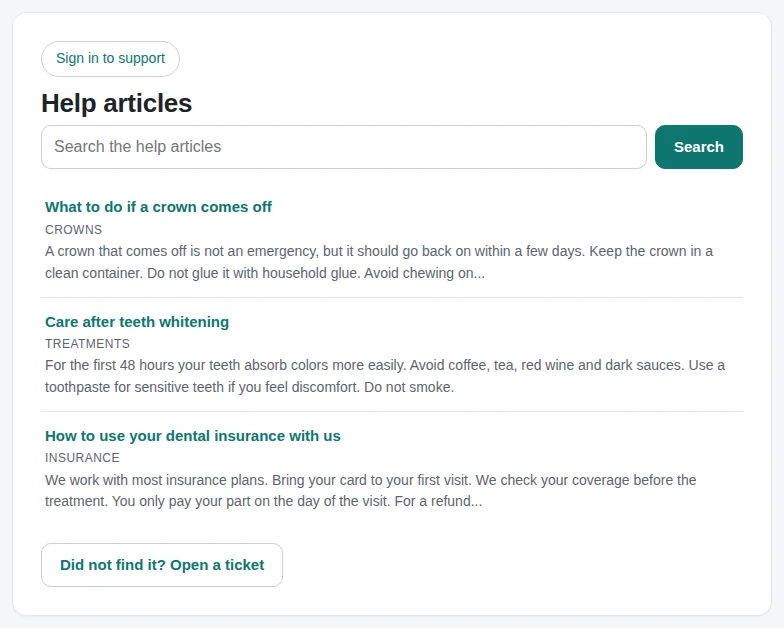
What your customers see
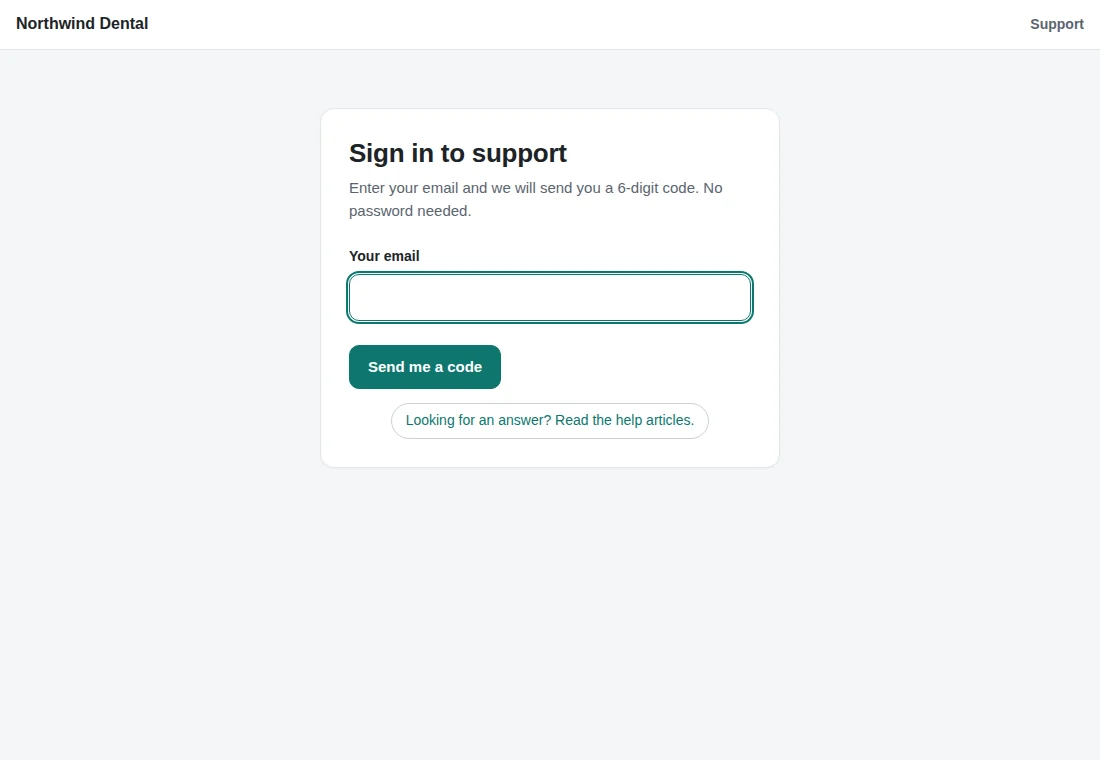
Sign in with a code
The customer writes their email and gets a 6-digit code ("Send me a code"). The email is checked the same way as in the chat (format, disposable domains, whether the domain receives email and, when your site has it, the check by Digital Checkmark): an address that does not work gets no code and the portal says why. It also goes through the same check that a person is writing as the chat; a WordPress user who is signed in confirms their email with the code once, and then goes straight in (an administrator always does). They stay signed in for 30 days.
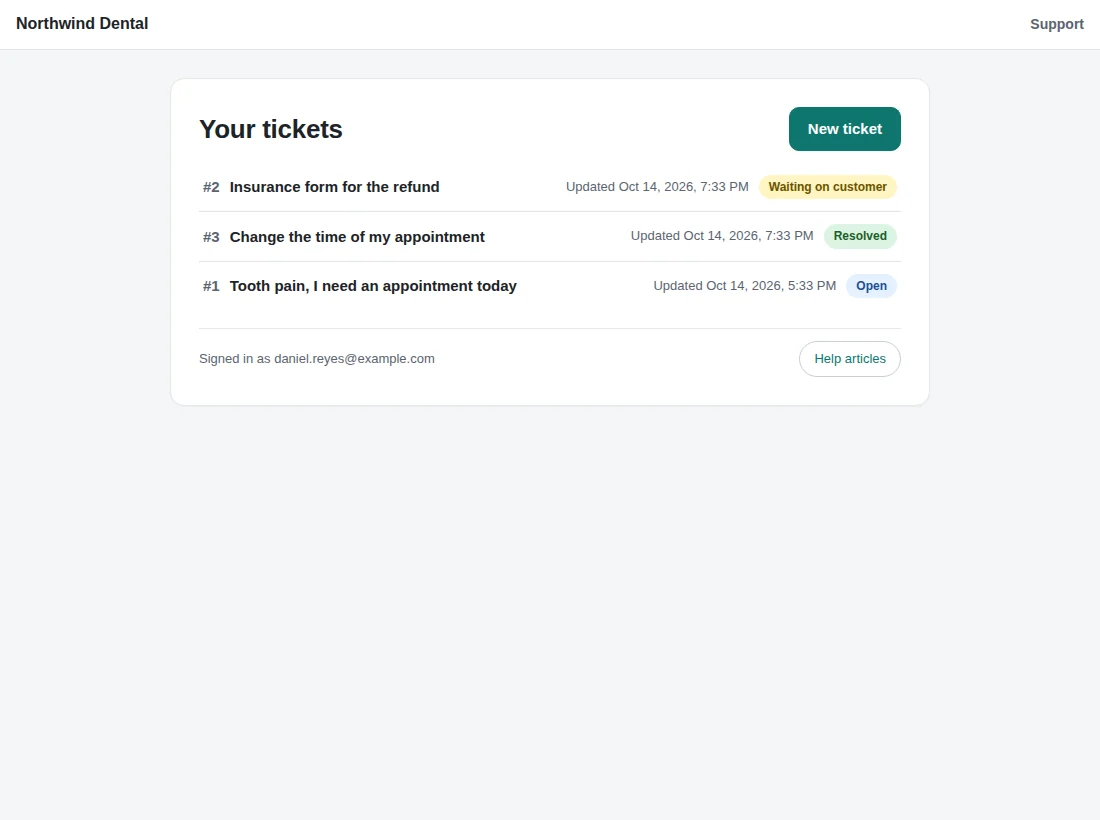
Their tickets
"Your tickets" lists their tickets and the ones they are copied on, with the status and the last activity.
A new ticket
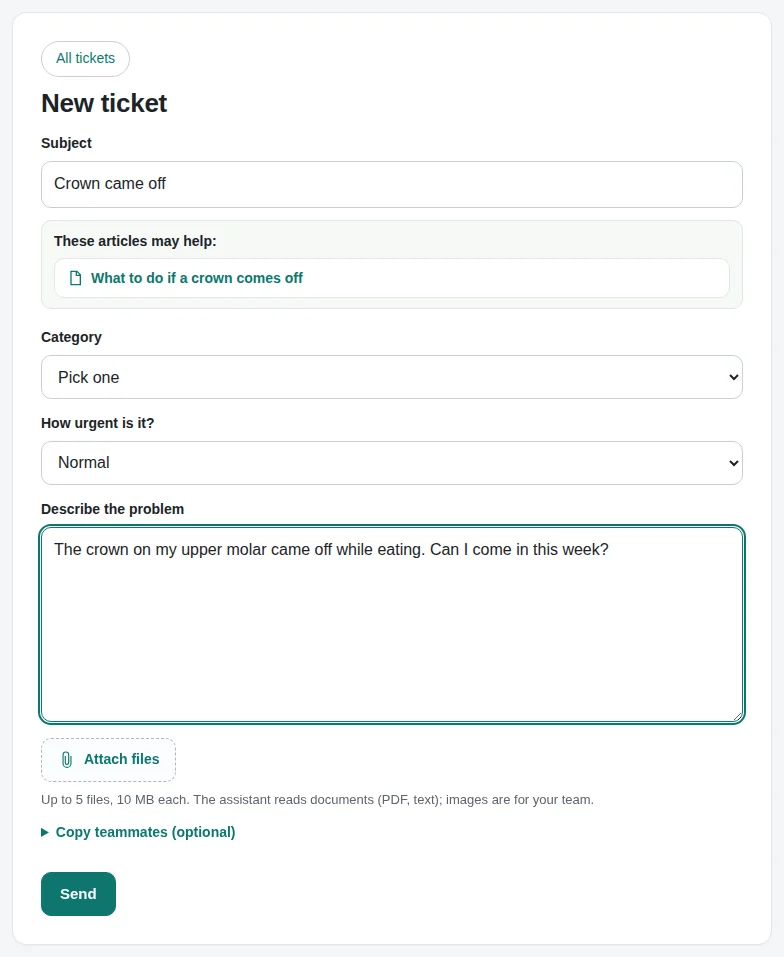
"New ticket" asks for the "Subject", the "Category" (if you have categories), "How urgent is it?" (if it is on) and "Describe the problem", with files ("Attach files") and teammates in copy ("Copy teammates (optional)": only addresses at the customer's own company domain). While they write the subject, the portal suggests help articles.
When they press "Send", the support assistant reads the ticket and answers. The customer keeps writing as long as they want; when they are done, they press "It is solved" or "Send to support".
The thread
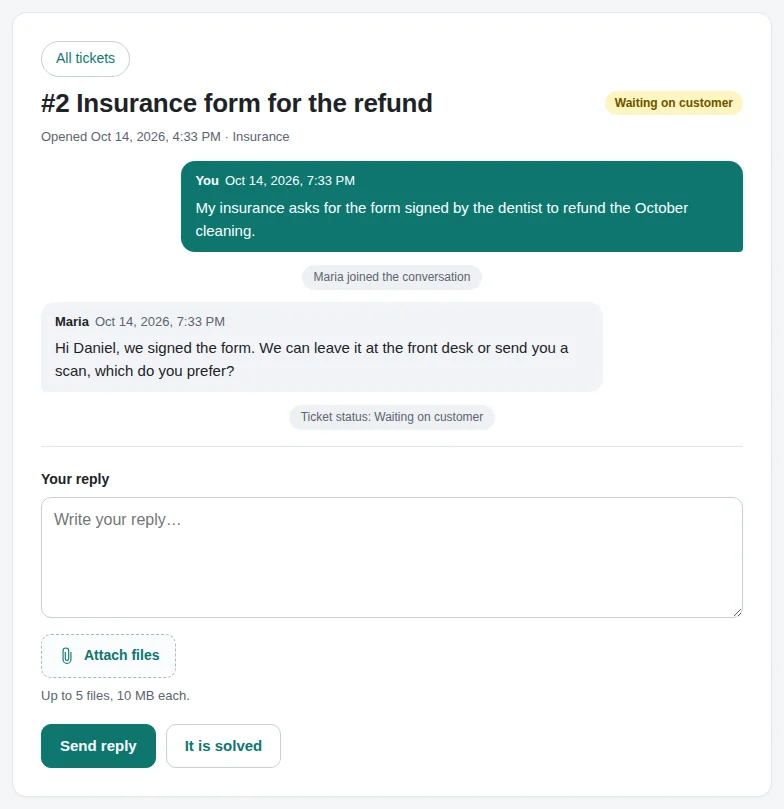
The ticket shows the conversation with the assistant (if there was one), your team's replies with their names and photos, the status changes, and a box to answer with files. "It is solved" marks it as resolved; then the customer can rate it from 1 to 5 stars. The portal refreshes the thread on its own every 20 seconds.
Working tickets in Support
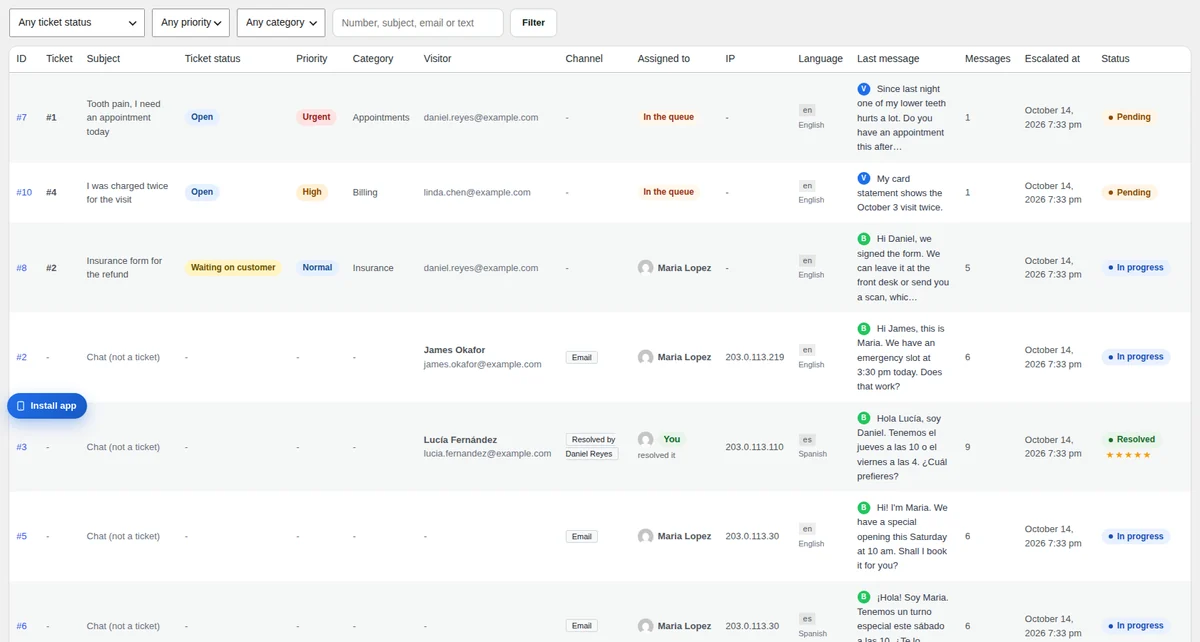
With tickets on, Support adds the columns "Ticket", "Subject", "Ticket status" and "Priority" (and "Category"), puts the most urgent first, and has filters for the status, the priority and the category, plus a search by number, subject, email or text.
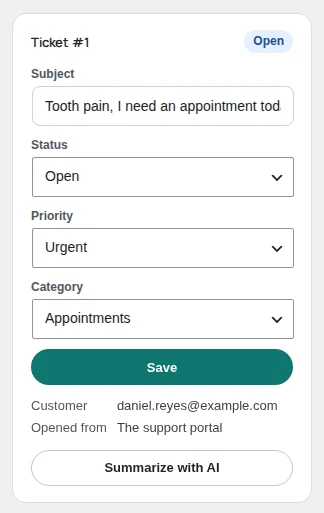
In a conversation, the Ticket card changes the "Subject", the "Status" (only to the statuses allowed from the current one), the "Priority" and the "Category"; press "Save". It also shows the customer's email, the copies and where the ticket was opened. A ticket from the chat whose email was not confirmed with a code shows the email as "not confirmed" and does not show in the portal until the customer confirms it. On Pro, "Summarize with AI" sums the ticket up in 5 points.
Emails to the customer
The customer and the copies get an email with your brand, in the ticket's language, when the ticket is received, when your team replies and when it is resolved, each with "View and reply in the portal". Answers to these emails do not reach the ticket: they go to the "Reply-To of the emails" mailbox (empty = the site administrator), and the email says so.
Automatic close
- "Resolve after": days waiting on the customer before the ticket moves to Resolved (7). The customer gets a reminder one day before.
- "Close after": days in Resolved before it moves to Closed (14).
On hold never moves by itself. 0 = never.
Pro: your team
- "Wait alerts by priority": how long a customer can wait before the team is alerted, by priority (urgent 15 minutes, high 30, normal 60, low a day). Waiting on customer and On hold never alert.
- "AI on new tickets": the AI suggests the category, the priority and, for tickets from the chat, the subject. It only fills what nobody chose, and the ticket shows "Suggested by the AI".
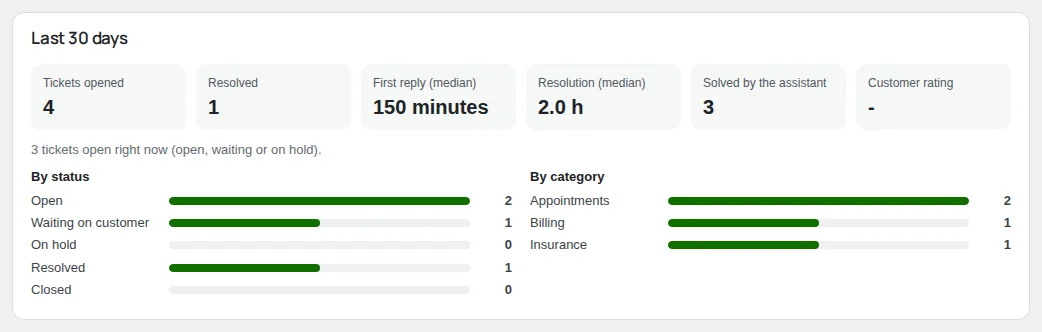
- "Last 30 days": the reports at the top of the screen: tickets opened and resolved, the median first reply and resolution, the requests the assistant solved without a ticket ("Solved by the assistant"), how many conversations with the assistant ended in a ticket, and your customers' rating.
Privacy and uninstall
- WordPress's Export personal data and Erase personal data (Tools) include the tickets where that email is the customer; erasing also takes it out of the copies of other tickets.
- What the assistant learns from tickets keeps no names, emails or phone numbers, and deleting a ticket deletes what was learned from it.
- Deleting Helpdesk Chk from the Plugins screen leaves your data, unless "Delete everything when the plugin is deleted" (Help desk > Deleting the plugin) is on. Then it deletes the portal's tickets and their conversations, the copies, the help articles and their categories, what the assistant learned, the ticket columns it added to Chatbot Chk's conversations and its settings. Tickets that started in the chat stay as conversations of Chatbot Chk.
- Deactivating Helpdesk Chk keeps everything, but while it is off Chatbot Chk treats tickets as ordinary conversations: its retention (Settings) deletes the old ones, open tickets too, and the bots stop citing the help articles.
Getting help
The Chatbot Chk guide explains everything the help desk shares with the chat: the AI, the context, Support, your team and the alerts. For anything else, write to support from the Digital Checkmark site.
Go to support